How to choose a Shopify theme around your products
Choose the buying experience first. Then choose the visual direction.
Choose a Shopify theme by testing the tasks your products require, not by choosing the most impressive demo. Start with a real product, a realistic collection and a phone-sized screen. Buy only when you can name the useful difference between your current theme and the alternative.
Write a buying brief before a design brief
Take three products from your catalogue: the simplest, the one with the most choices and the one that needs the most explanation. Write down what a shopper must understand before adding each to the cart. A bag might need dimensions and a view of the interior; a garment might need fit guidance; a consumable might need ingredients and usage instructions. These are examples of customer questions, not a promise that one theme includes every specialist feature.
Turn that list into must-haves, useful extras and things you do not need. This stops a long feature inventory becoming a shopping list. Ask who will maintain each piece of content after launch. An impressive layout that your team cannot update is an ongoing dependency, not a finished solution.
Run the same small test on every candidate
Use the same product images, long title and collection structure when you compare options. A carefully styled demo can hide how a design behaves with ordinary content. Look for a readable price, a clear selected variant and an uninterrupted route to the cart. Test the layout with a short and a long description rather than assuming they behave alike.
On mobile, check the whole task: open navigation, find a category, choose a product, make a choice and inspect the cart. Check that the page itself does not move sideways and that a drawer can be closed without losing your place. Use a keyboard too. A theme should not make the customer discover a hidden gesture just to continue shopping.
- Read a long product title without truncation hiding essential information.
- Choose a variant and confirm the displayed selection.
- Increase and remove a cart item, then return to shopping.
- Open the menu and return focus to the page.
- Check the empty collection and empty cart states.
Check the editing workflow, not just the result
Ask to see the actual Theme Editor. Move a section, replace an image and adjust its text using the controls you will receive. Find out which settings apply globally and which belong to one section or template. A global colour change and a local campaign override solve different problems.
The Ecomfella product tour includes real storefront captures and a recording of Biebers Hero being edited in Shopify. Treat these as evidence of those shown controls, not proof that every page or app integration will work with your specific store. Inventory is release-specific: confirm the package and supported release before purchase.
Count the remaining work
Compare the theme purchase, implementation work, necessary apps and ongoing maintenance as separate costs. A built-in visual feature can reduce the need for an app that serves the same purpose; it does not replace unrelated subscriptions, fulfilment systems or your Shopify plan. Write down the actual apps you use and validate an alternative before uninstalling anything.
A free theme is a reasonable choice when it supports your buying tasks. A paid theme becomes interesting when it closes specific gaps without introducing harder editing or maintenance. Custom development is worth discussing when your critical workflow cannot be expressed with either option. None of these choices guarantees sales.
Make the handover part of the decision
Confirm the number of licensed stores, what support covers, how updates arrive and who is responsible for publishing. Ask what is excluded: photography, product entry and ongoing management are not automatically part of a theme package.
For Ecomfella, compare Core and Complete on the current pricing page. The theme is delivered through the Buyer Portal for an approved store seat; installation uses an unpublished Shopify theme before the merchant reviews and publishes. Do not assume an automatic installation app or an automatic overwrite of the live store.
See the decision in the real theme
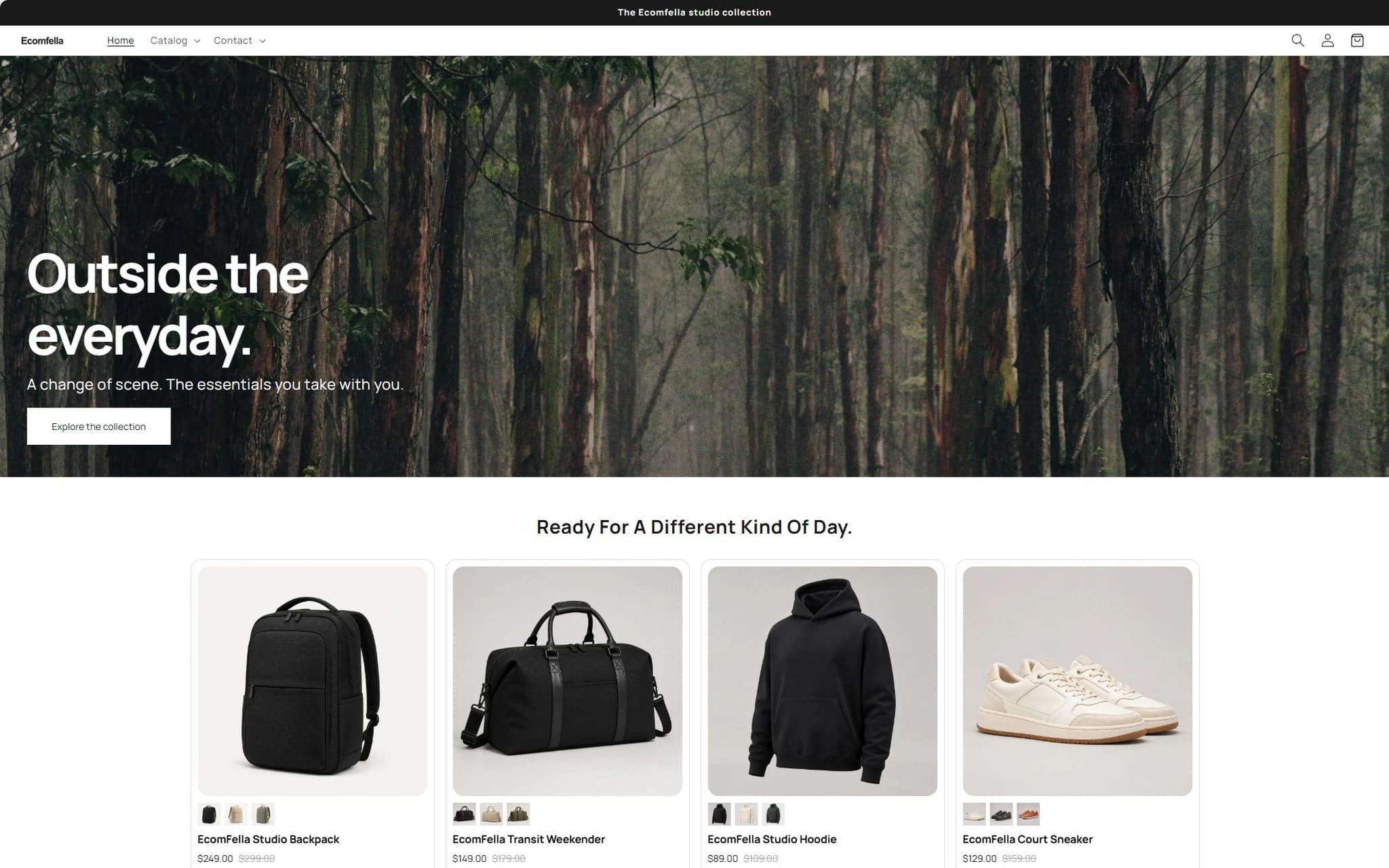
Use the Ecomfella theme overview as the product reference, then inspect the real demo and current package comparison. A guide is not a substitute for checking your own catalogue, release and integrations.
- Installation
- Upload the delivered ZIP as an unpublished Shopify theme. Review before publishing it yourself.
- Store licensing
- One licensed Shopify store per store seat.
- Updates
- Review supported releases in the Buyer Portal. Updates do not automatically overwrite your live theme.
Put the guide next to the product.
Inspect what is included, then decide whether the theme fits your store. Preview content does not open sales or grant account access.
Explore the themeSources and review
External product details were checked on 2026-09-13. Provider documentation can change. Ecomfella examples use the current marketing evidence library; development files and future products are not a promise of delivery.
- Shopify: choosing themes, checked 2026-09-13
- Shopify: adding and previewing themes, checked 2026-09-13